Where is the settings file?
It depends on the version.
Fetchit 1.x and earlier keeps its settings in an .ini file:
%USERPROFILE%\AppData\Roaming\FetchITWin32Client\settings.iniFetchit 2.x and later keeps them in the Windows registry:
HKEY_LOCAL_MACHINE\SOFTWARE\FetchitIf you are not sure which version is installed, check the About section of the application. Editing either location needs administrative privileges, and both are worth backing up before you change anything.
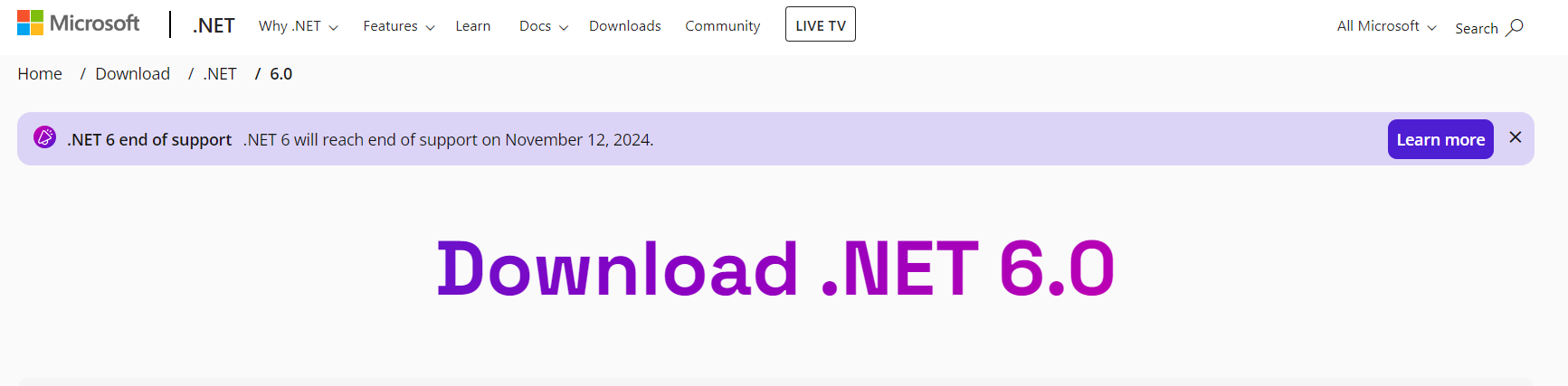
The installer errors, for example "Cannot install FetchIt on systems without .NET Core 6.0"
Download and install the .NET 6 runtime for Windows x86.
Fetchit does not launch at startup
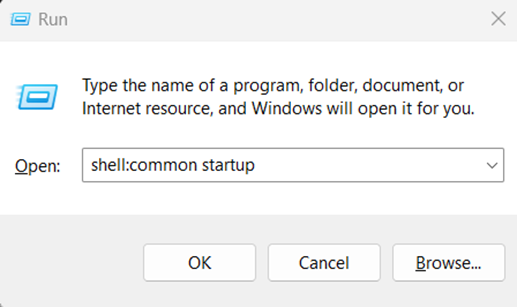
Check for a Fetchit shortcut in the startup or common startup folders, and add one to common startup if it is missing. Open the Run dialog and type shell:common startup to get there.
If the shortcut is set to run as administrator, Fetchit will not auto-launch when the user logged in at startup is not an administrator.
Fetchit does not open the record in AVImark, Cornerstone or Impromed
Try running Fetchit as administrator. On some machines those applications run with elevated UAC privileges, and Fetchit has to match them to interact with them.
On Impromed, several clients come up instead of one
Set the Impromed search bar to the exact match option so it returns one unique human customer. You may still see several results, because one customer can have several pets on their account.
The Fetchit service stops immediately, or throws error 1063 or 1060
Something in the service is misconfigured. Open fetchitServiceConfigurator and check every field.
For AVImark, check the UNC path to the AVImark folder. Paste it into File Explorer to prove the machine can actually reach it.
For Impromed, check the server and database names, which are case sensitive. Open SQL Server Studio on the server to see the real names; the database is usually IMPROMED or Impromed.
Then read the Event Viewer for the reason it crashed.
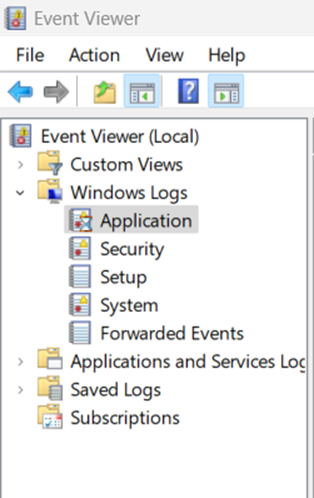
Open Event Viewer, go to Windows Logs > Application, and look for Fetchit Service and .NET runtime errors.
The installer or uninstaller does not complete
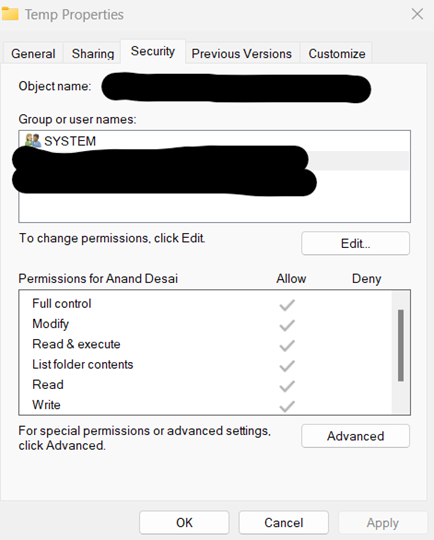
Usually the logged-in user does not have permission on the Windows Temp folder. Open the Run dialog, type %tmp% to get to it, then right click the folder, open Security, and make sure the logged-in user has full read and write permissions.
Bubbles are not appearing at all
That has a long list of causes of its own; see why bubbles may not appear.