Fetchit Orion is the internal tool for creating and managing the settings of each Fetchit customer. From it you set up the phone worker that listens to the clinic's phone system, add the Fetchit licence, and enter the PMS credentials Fetchit integrates with.
Go to orion.fetchitdata.cloud and sign in with your Schultz Technology Microsoft account.
Step 1: open the Client tab
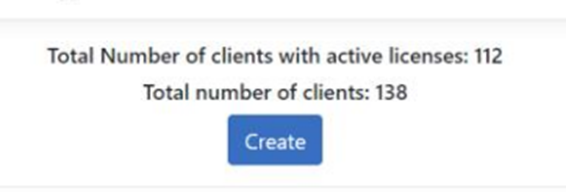
Go to the Client tab and select Create at the top of the screen.
Step 2: create the client entry
Copy the company name from ConnectWise Manage, paste it in, and click Create. Orion takes you to the client details page.
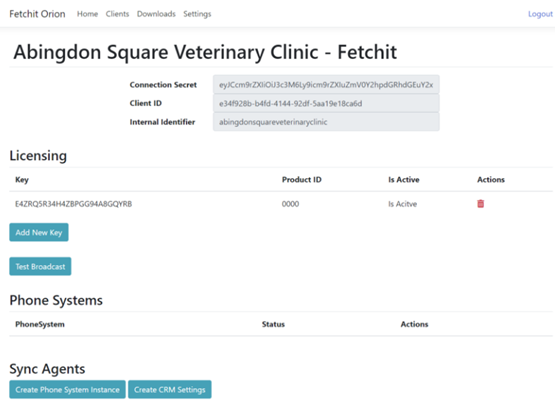
Two values on this page matter later:
- The internal identifier, which is the client ID the service configurator and the White Label webhook both ask for.
- The connection secret, which each desktop installation is given.
Step 3: add a Fetchit licence
If there is no licence key under Licensing, add one with Add New Key.
One licence per client
Do not add more than one licence key to a client.
Next
- Create the phone system worker, unless the clinic is on a CallerID box.
- Enter the PMS settings, unless the clinic runs AVImark, Cornerstone or Impromed.